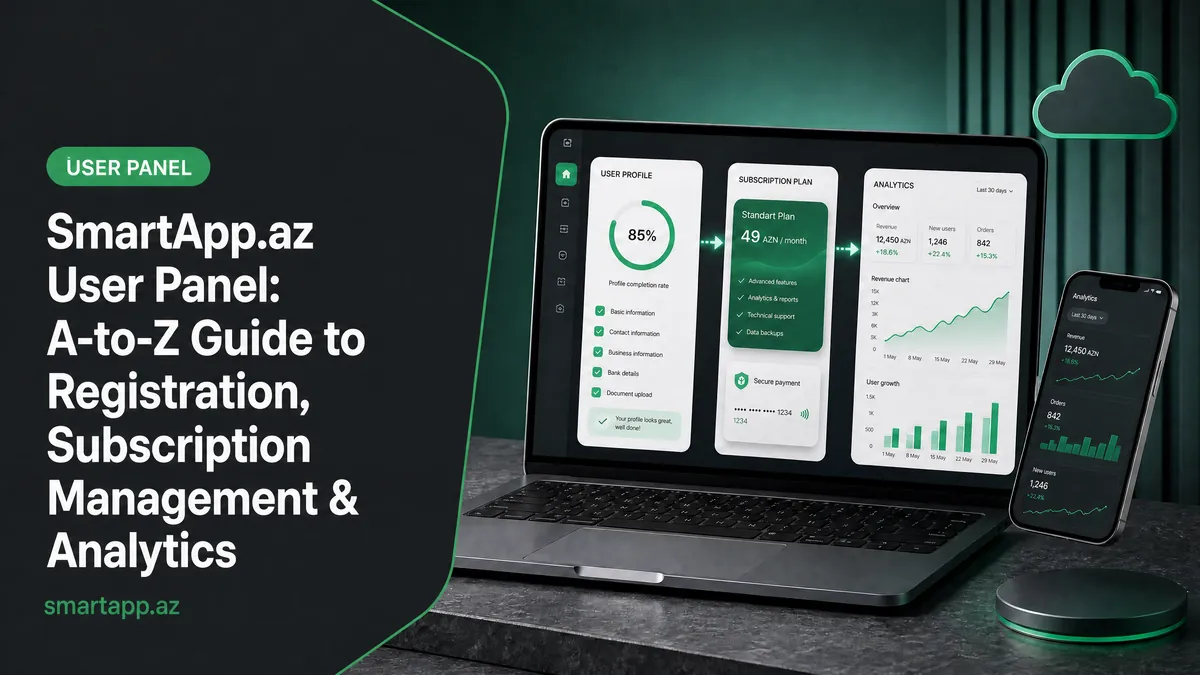
SmartApp.az User Panel: A to Z Guide for Registration, Subscription Management, and Analytics
The SmartApp.az User Panel provides restaurant, café, and entertainment venue owners with a unified web portal to manage subscriptions, legal billing documents, revenue analytics, and branch networks from any device.
Explore more features on the SmartApp.az portal to streamline your business operations.
For a full overview of all tools, visit the SmartApp.az homepage.
💡 Core Architecture & System Division:
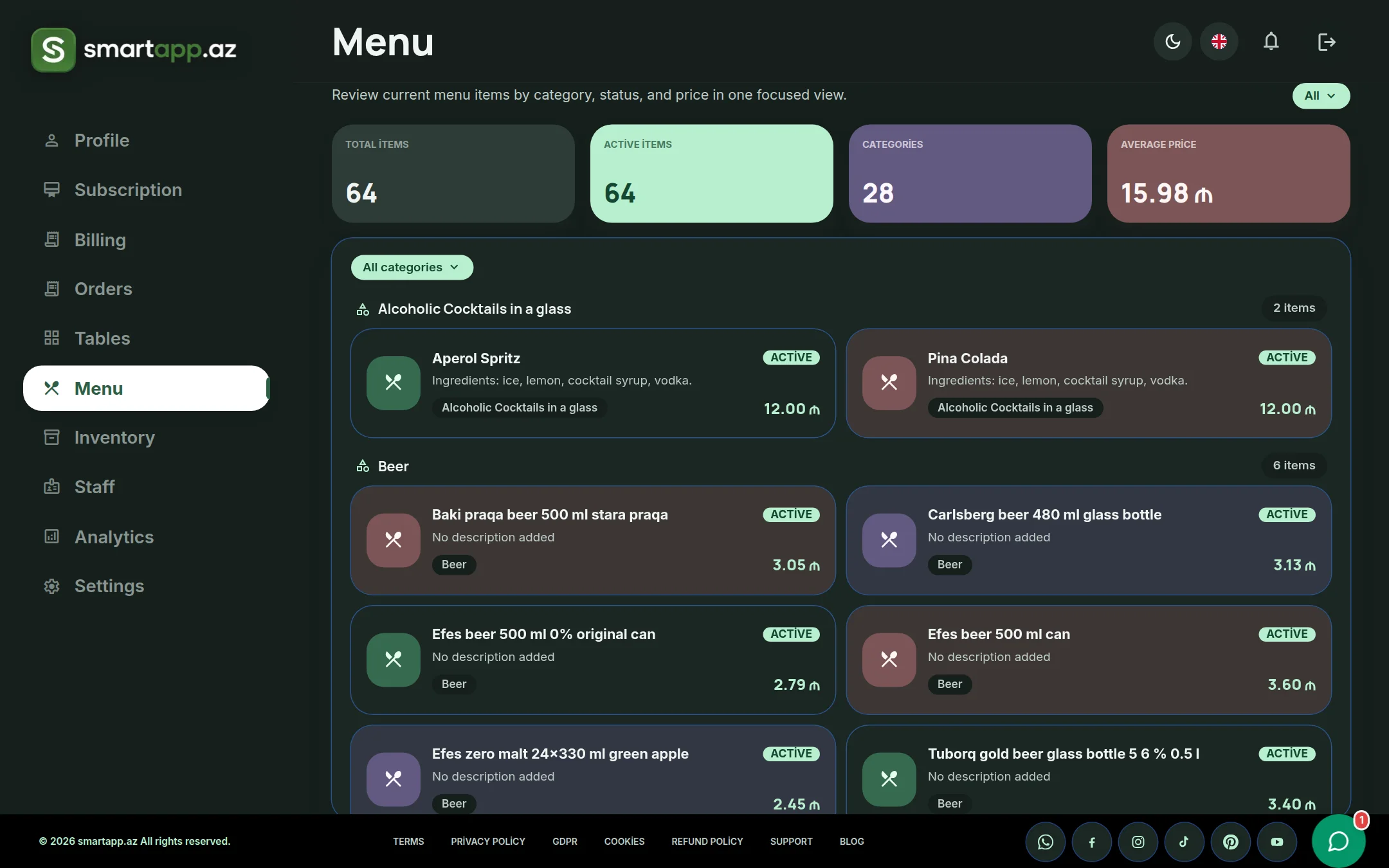
The smartapp.az User Panel is dedicated to subscription lifecycle, billing invoices, branch credentials, and global business reports. The Tables, Menu, Inventory, and Staff modules here serve strictly for monitoring and overview purposes. All operational actions—such as adding menu items, adjusting ingredient recipes, deducting warehouse inventory, placing live orders, and configuring POS terminals—are conducted directly in the app.smartapp.az Business Panel!
Guide Table of Contents:
- 1. SmartApp.az Registration & Account Creation
- 2. User Dashboard & Quick Access to Business Panel
- 3. Subscription Hub: Plans & Instant Renewal
- 4. Billing & Invoices: Balance Top-up, Payment Gateways & PDF Downloads
- 5. Tables, Menu, Inventory & Staff: Monitoring vs. Operations
- 6. Sales Analytics & Financial Performance
- 7. Settings, Profile & Multi-Branch Network Management
1. SmartApp.az Registration & Account Creation
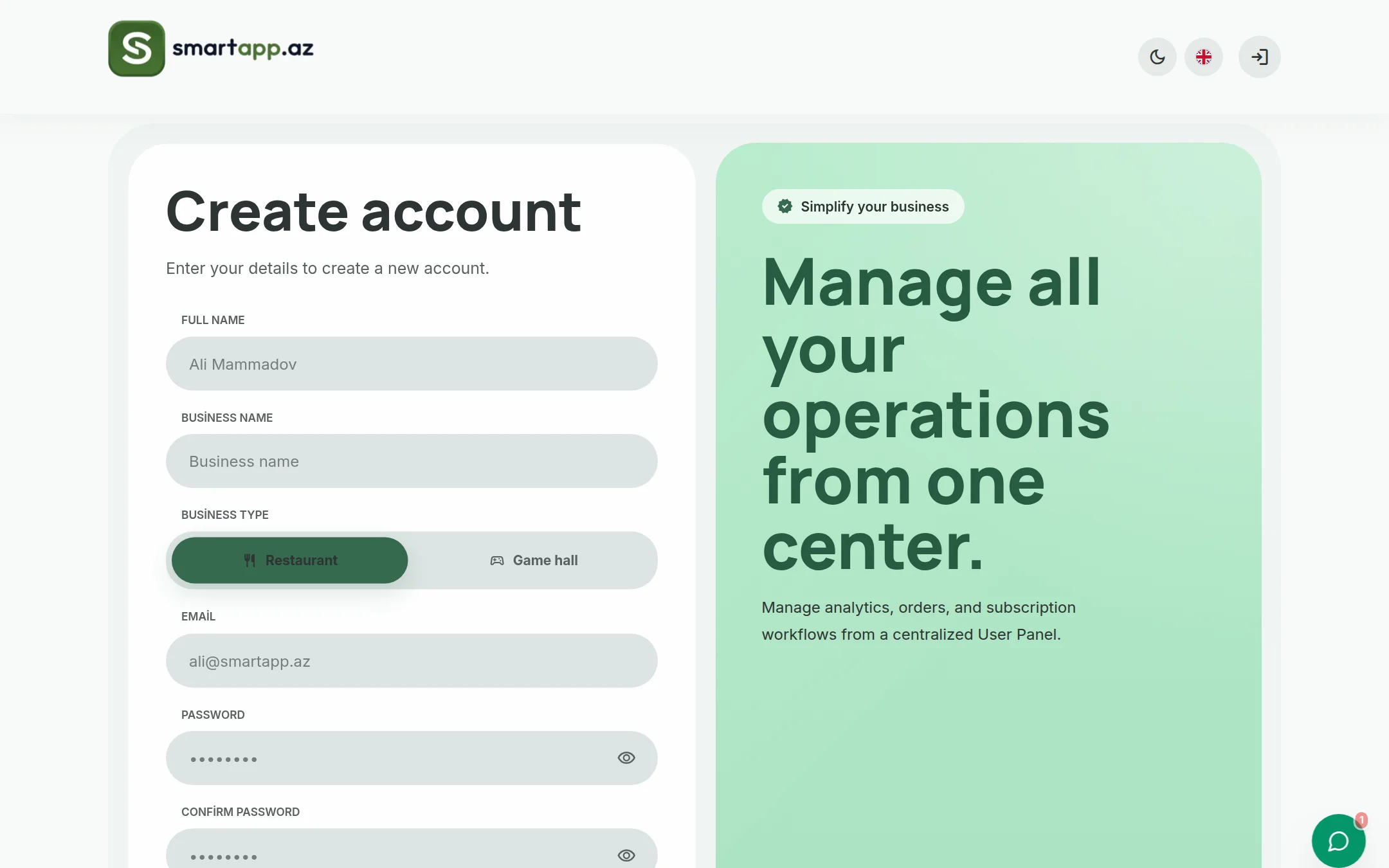
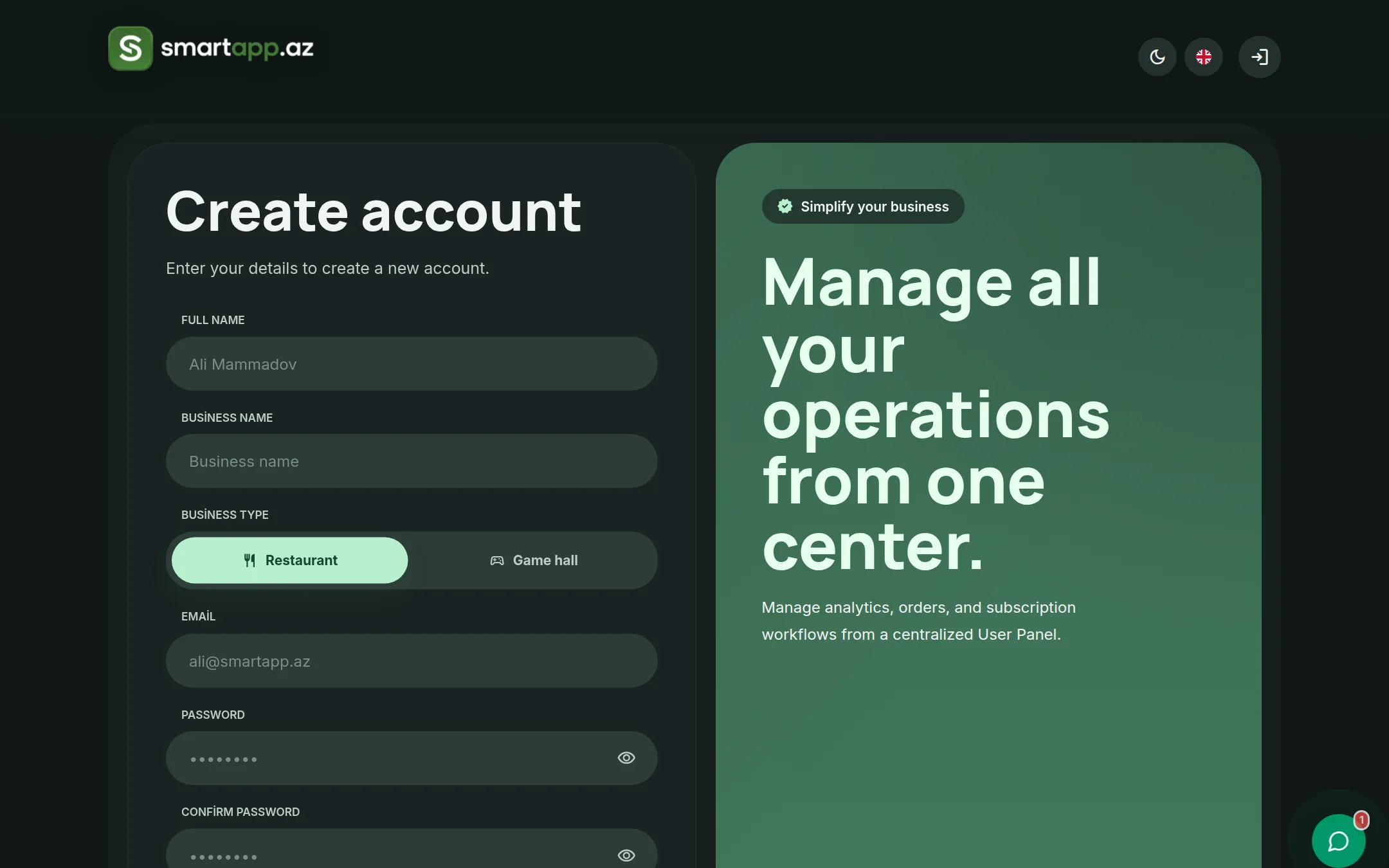
To begin using the ecosystem, navigate to smartapp.az/en/register. Account registration requires under 1 minute and involves the following essentials:
First & Last Name: Official contact details of the business owner.
Email Address: Used for account credentials, security notifications, and electronic invoices.
Venue Type & Name: Restaurant, Café, Fast-Food, Lounge, or Gaming Club.
Password: Secure master password protecting your enterprise dashboard.
2. User Dashboard & Quick Access to Business Panel
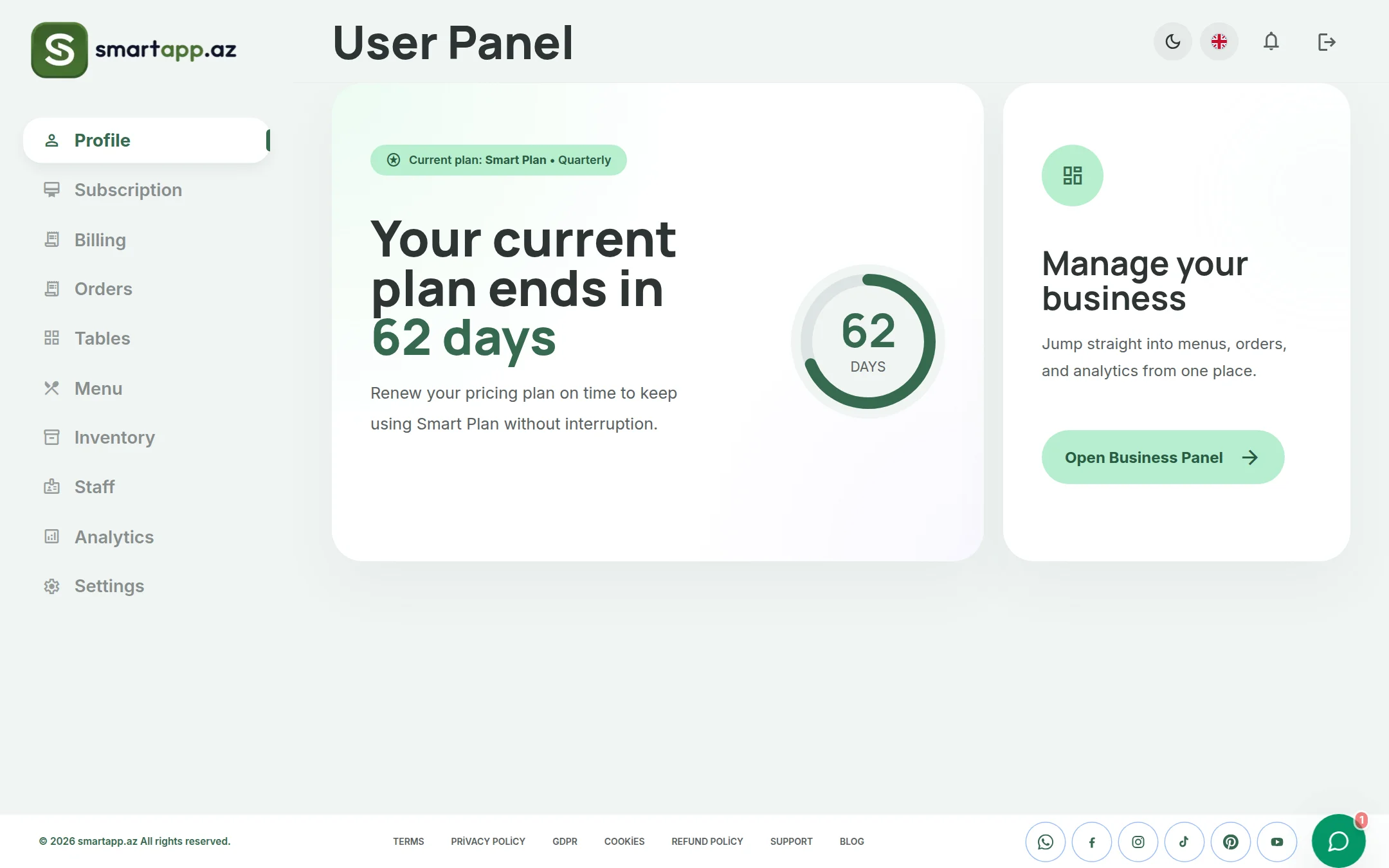
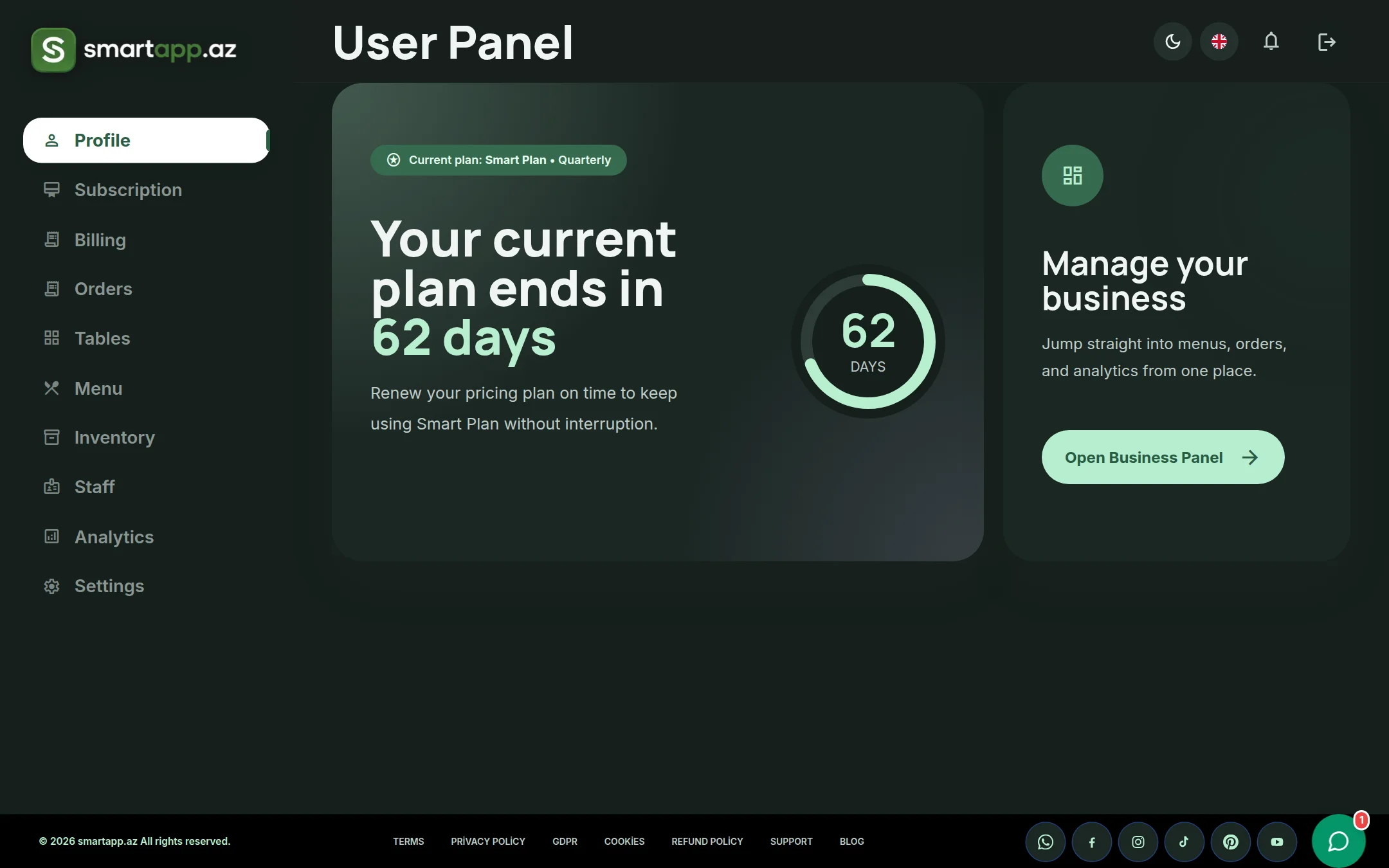
Upon logging in, the primary overview dashboard displays your active subscription plan (e.g., Smart Plan • 3 Months), remaining active days, and rapid system shortcuts.
The prominent "Manage Your Business" card seamlessly redirects you to the app.smartapp.az Business Panel, granting single-click entry to POS checkout, kitchen display systems (KDS), and menu customization.
3. Subscription Hub: Plans & Instant Renewal
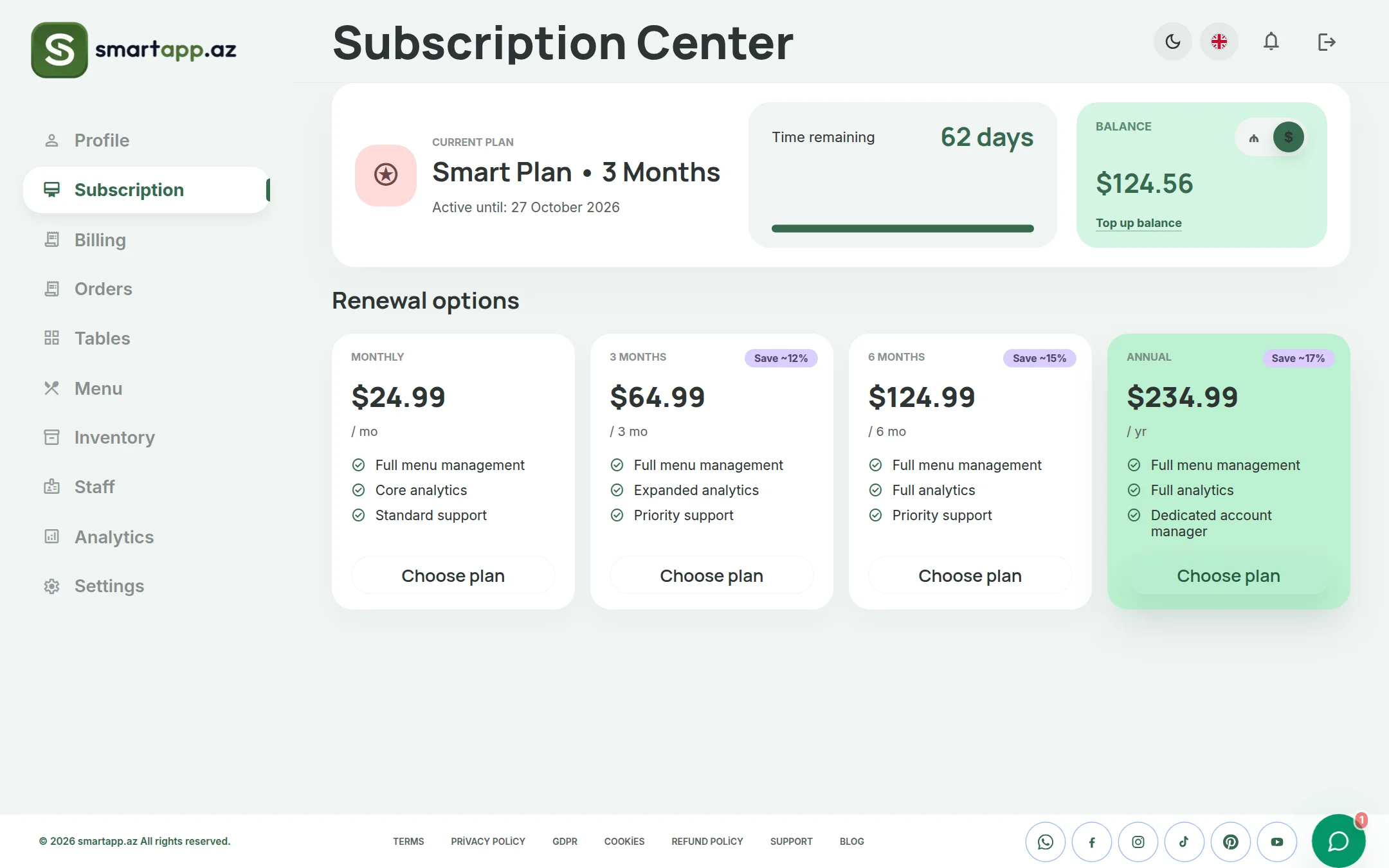
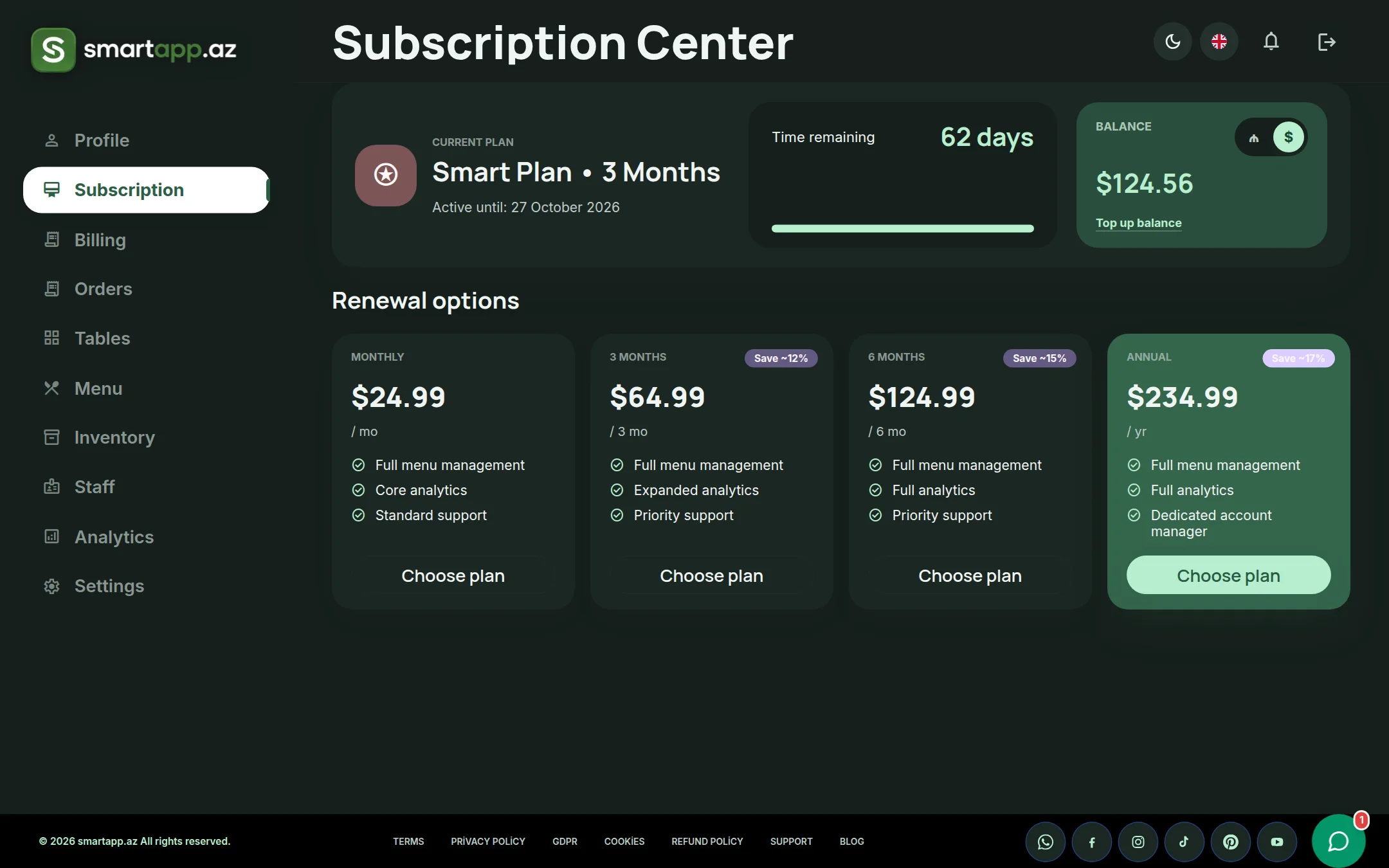
The Subscription section provides four scalable tiers designed for businesses of all sizes:
Monthly Plan: Standard package with unlimited tables, digital QR menu, and cloud POS.
Quarterly Plan (3 Months - Most Popular): 10% savings with integrated Kitchen Display System (KDS) and inventory control.
Semi-Annual Plan (6 Months): 15% savings, customer loyalty cashback system, and advanced analytics.
Annual Plan (Best Value): 20% maximum discount, unlimited staff accounts, and dedicated 24/7 VIP support.
Renewals can be executed instantly with secure card processing directly from the portal.
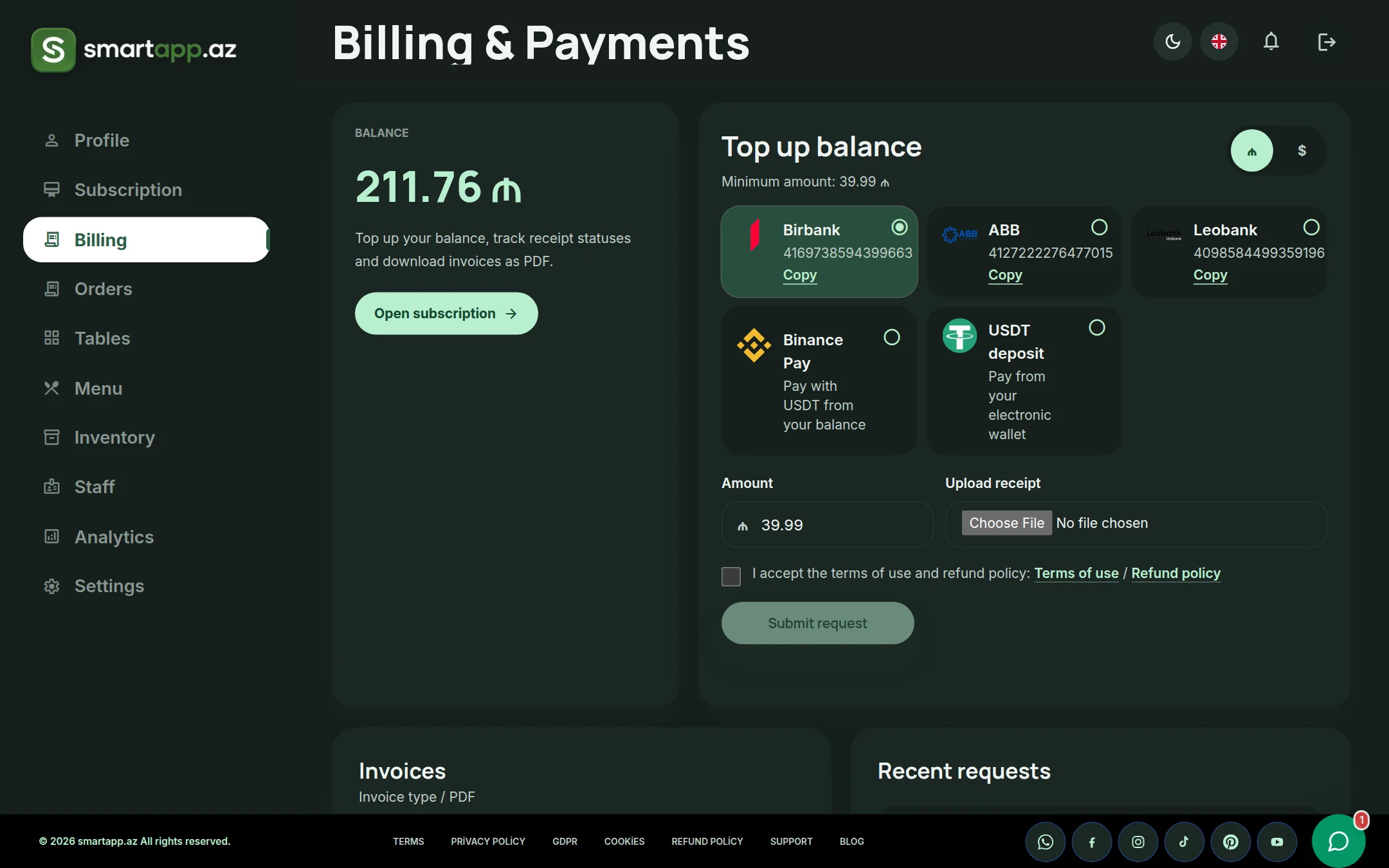
4. Billing & Invoices: Balance Top-up, Payment Gateways & PDF Downloads
The Billing module is engineered to handle enterprise finances, account balances, and accounting paperwork:
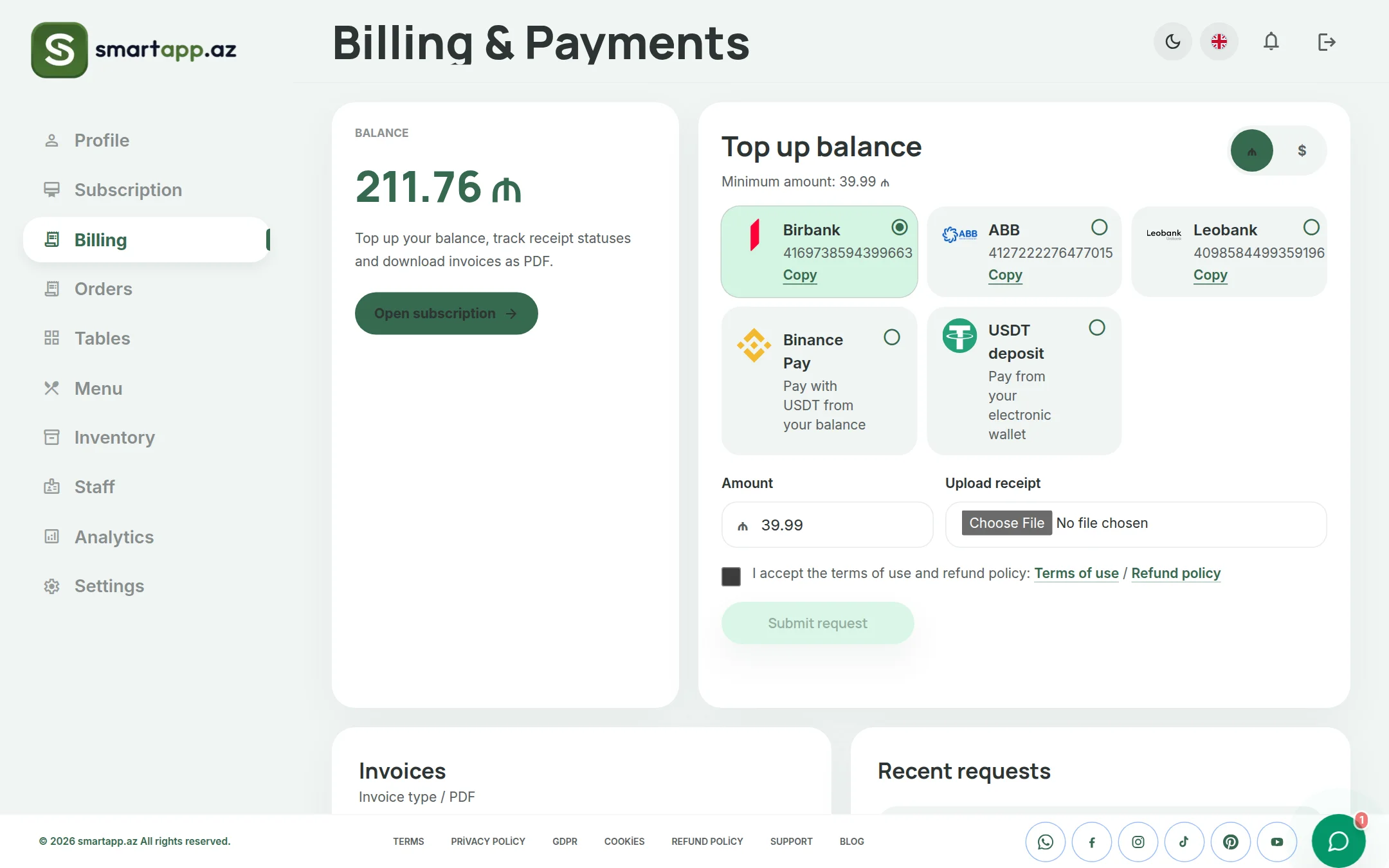
A. Step-by-Step Balance Top-up
Branch Selection: Choose the target branch account for multi-location businesses.
Amount Input: Specify your recharge amount (minimum payment threshold is $22.86 USD / equivalent local currency).
Payment Method: Select your preferred payment channel and submit the transaction request.
B. Supported Payment Methods
Direct Bank Card (Visa / Mastercard ): Instant card transfer with receipt upload (screenshot or PDF) for rapid operator verification.
Cryptocurrency (USDT & Binance Pay): Supports TRC20 and BEP20 networks, alongside Binance Pay ID / QR scanning. Submit your transaction hash (TX Hash) for automated verification.
C. Multi-Currency Support & Conversion
SmartApp.az provides transparent currency conversion:
AZN (Azerbaijani Manat): Primary domestic currency for regional cards and local transfers.
USD / USDT: Global currency benchmark for international cards and crypto payments with live exchange rates.
D. Official Tax Invoices (INV-XXXX) & PDF Export
Every transaction generates an official invoice code (e.g., INV-001042) capturing timestamp, amount, gateway, and status (Issued, Paid, Pending). Click "Download PDF" next to any record to download official accounting receipts for corporate filing.
5. Tables, Menu, Inventory & Staff: Monitoring vs. Operations
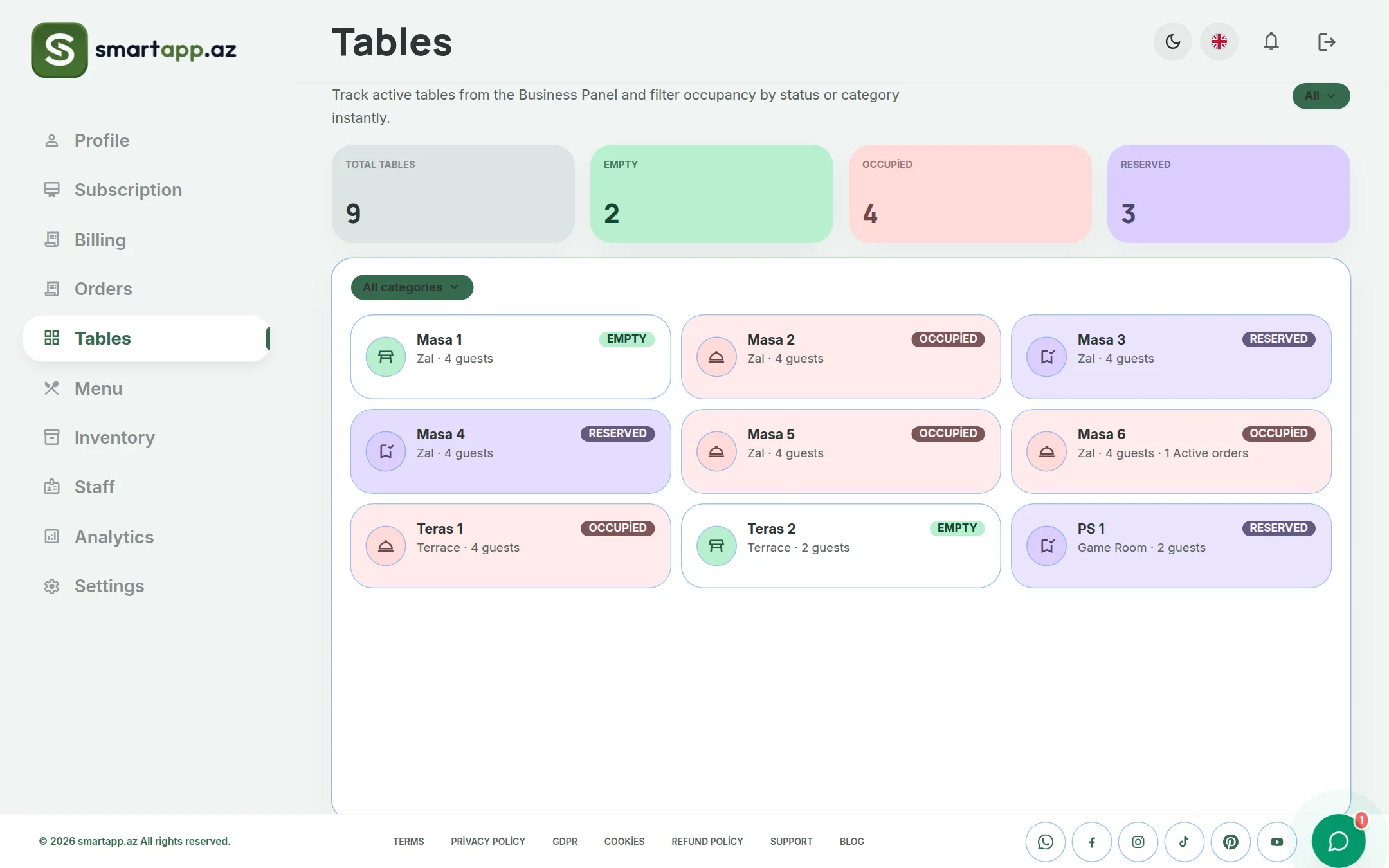
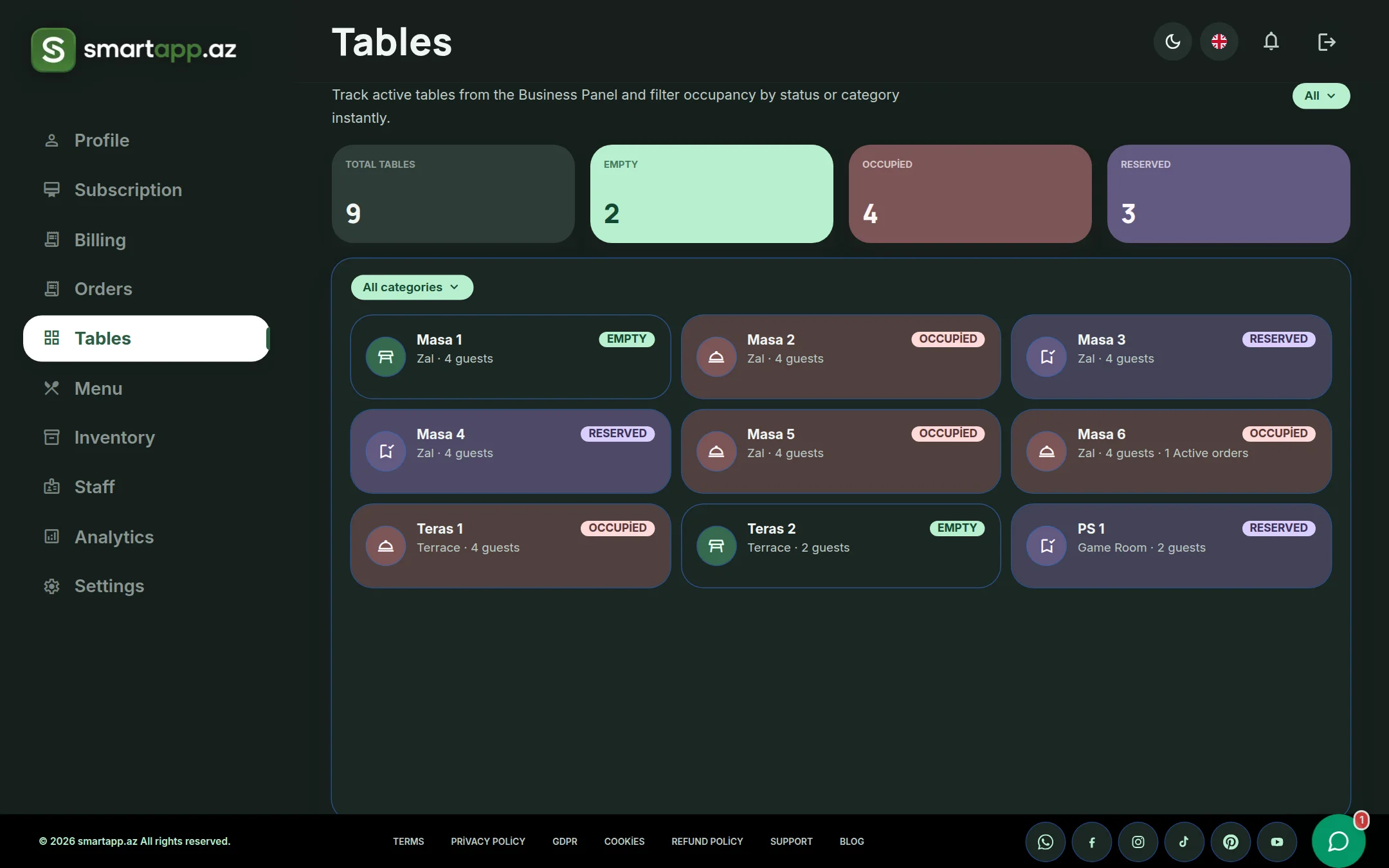
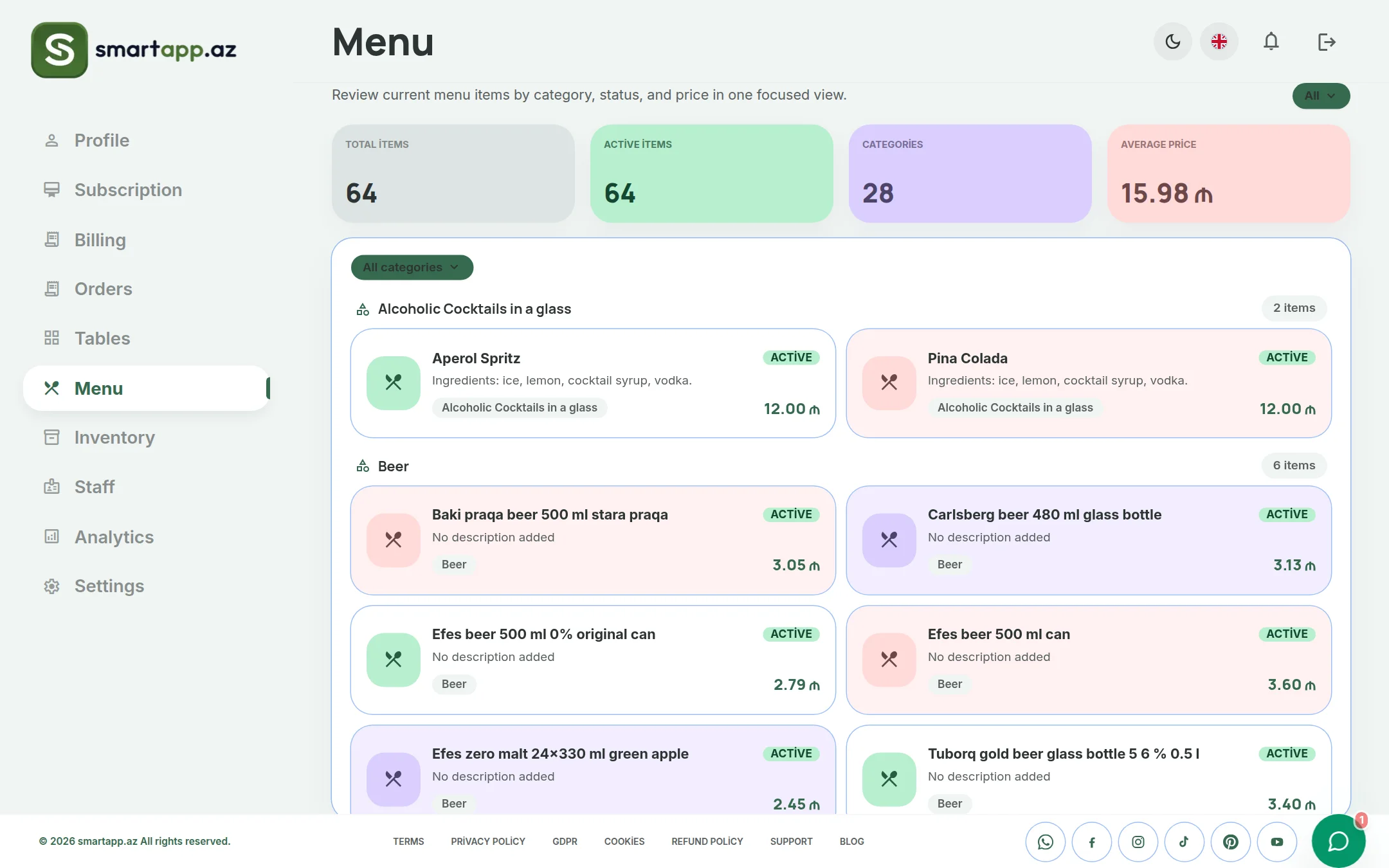
A crucial distinction of the architecture: The Tables, Menu, Inventory, and Staff tabs in the User Panel provide read-only analytical oversight.
Tables & Halls: View total tables and hall layouts. Adding new tables or modifying floor arrangements is managed via app.smartapp.az.
Menu Catalog: Browse digital item listings and prices. Dish creation, price updates, and imagery uploads take place in the Business Panel.
Inventory & Stock: Monitor remaining ingredients and stock balances. Raw material purchases and recipe deductions occur in the Business Panel.
Staff & Roles: View team rosters. PIN code assignments and permission tiers are controlled via the Business Panel.
6. Sales Analytics & Financial Performance
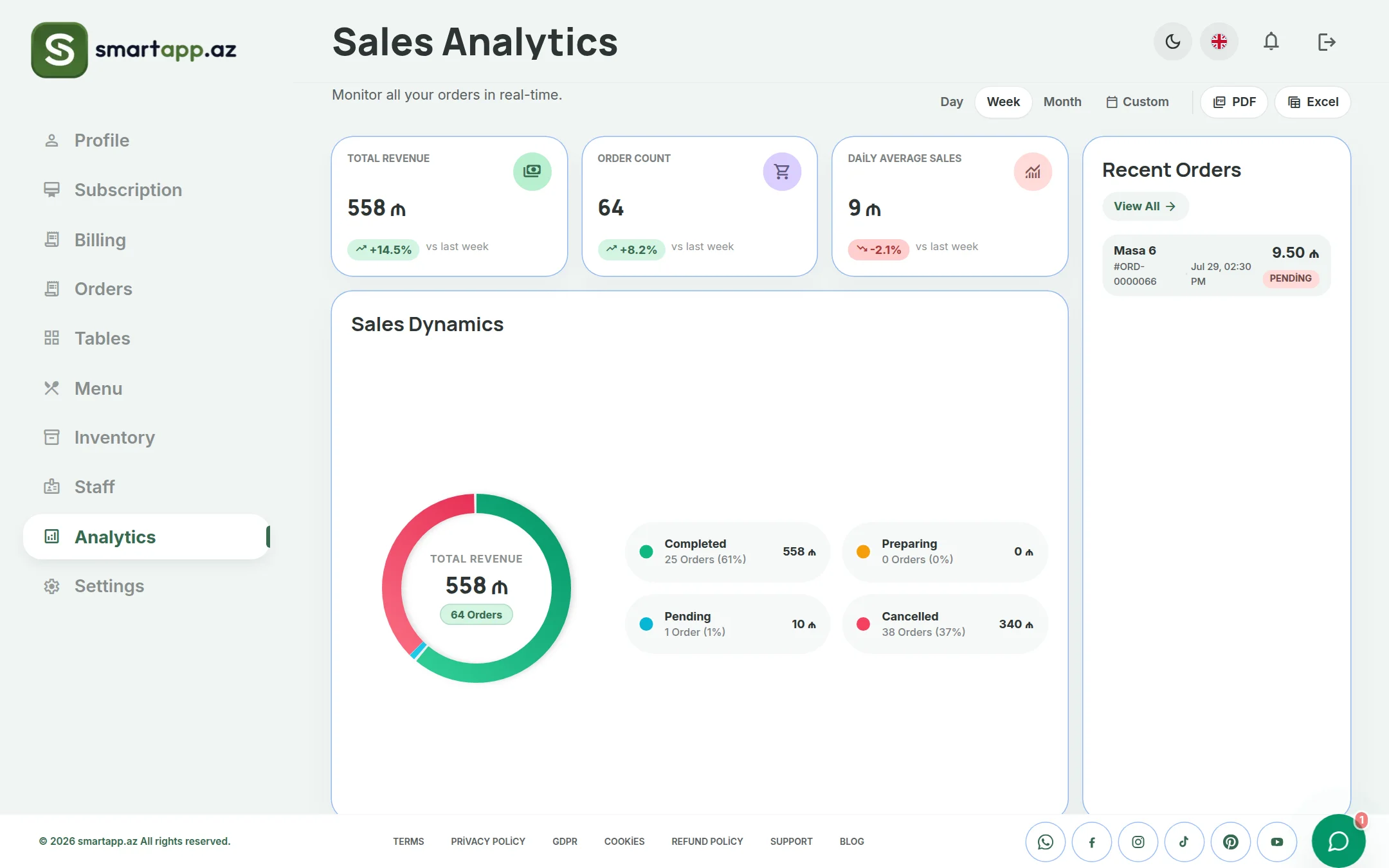
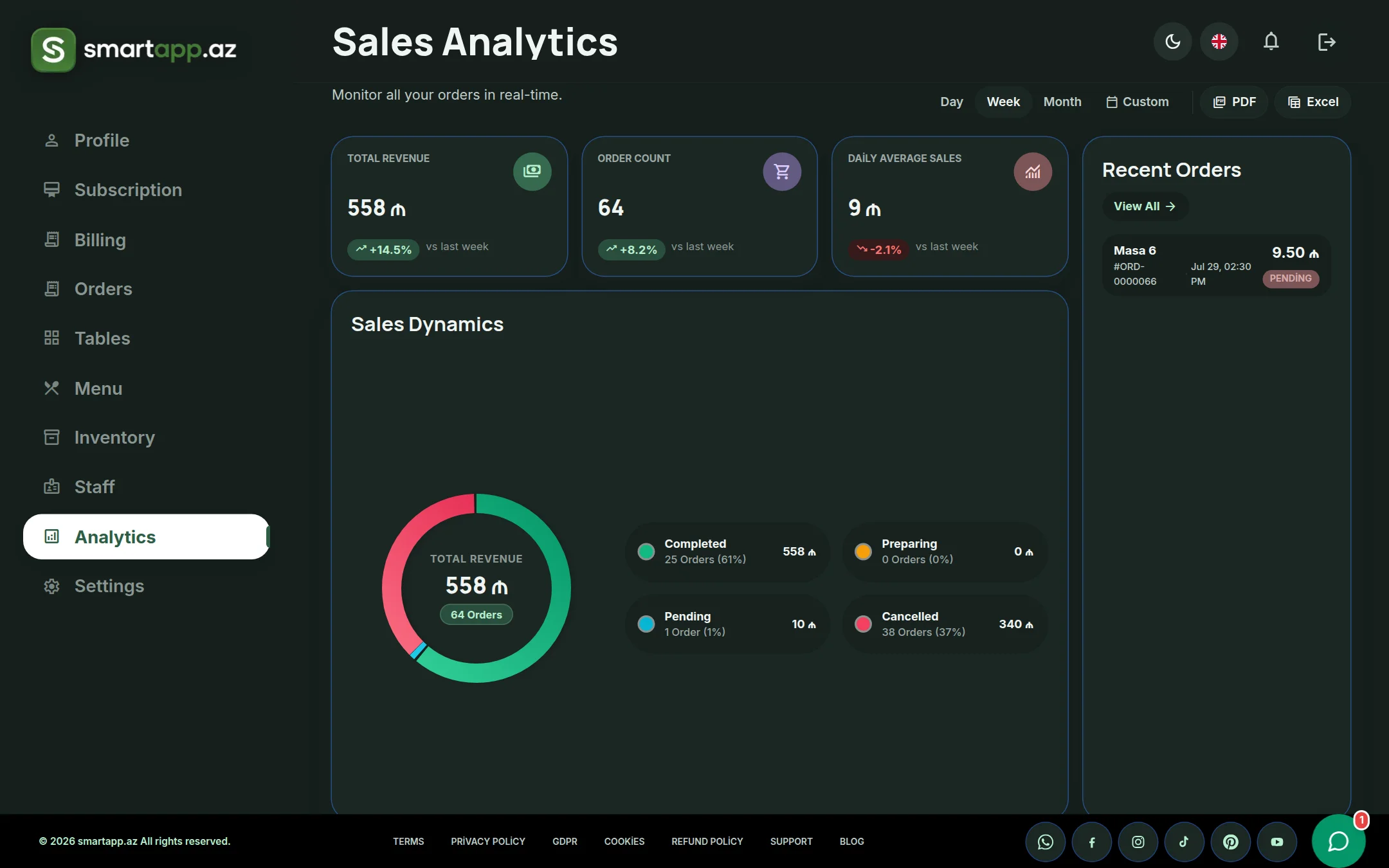
The Analytics module consolidates daily, weekly, and monthly gross revenue, hourly customer traffic trends, and top-selling menu items to drive data-informed management decisions.
7. Settings, Profile & Multi-Branch Network Management
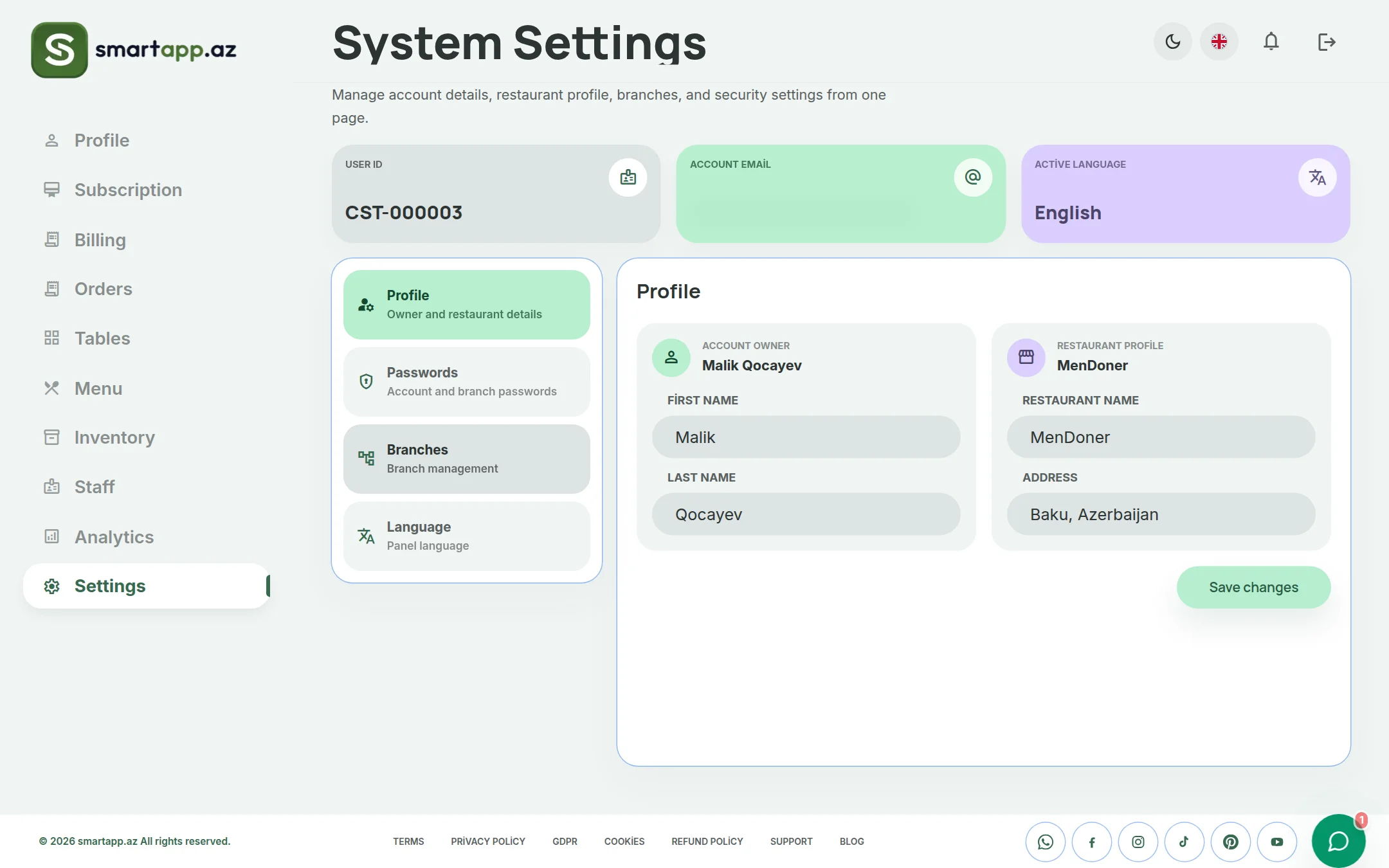
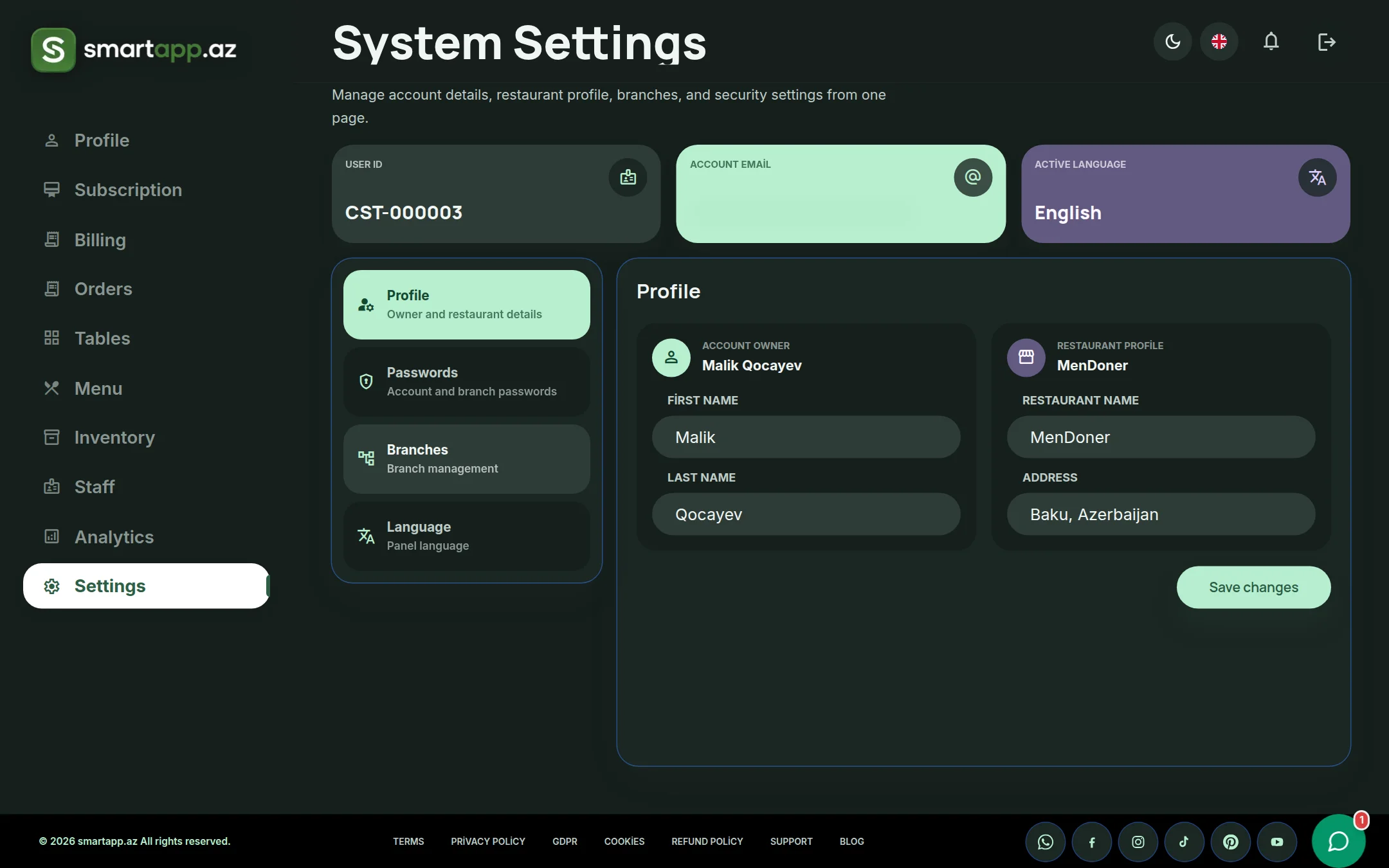
The Settings dashboard consolidates four key enterprise administration sections:
A. Profile Section (Account Owner & Venue Information)
Account Owner: Verified owner name and registered contact credentials.
Venue Profile: Business trading name, physical address, and cuisine classification.
Email Verification: Two-factor security confirmation for administrative emails.
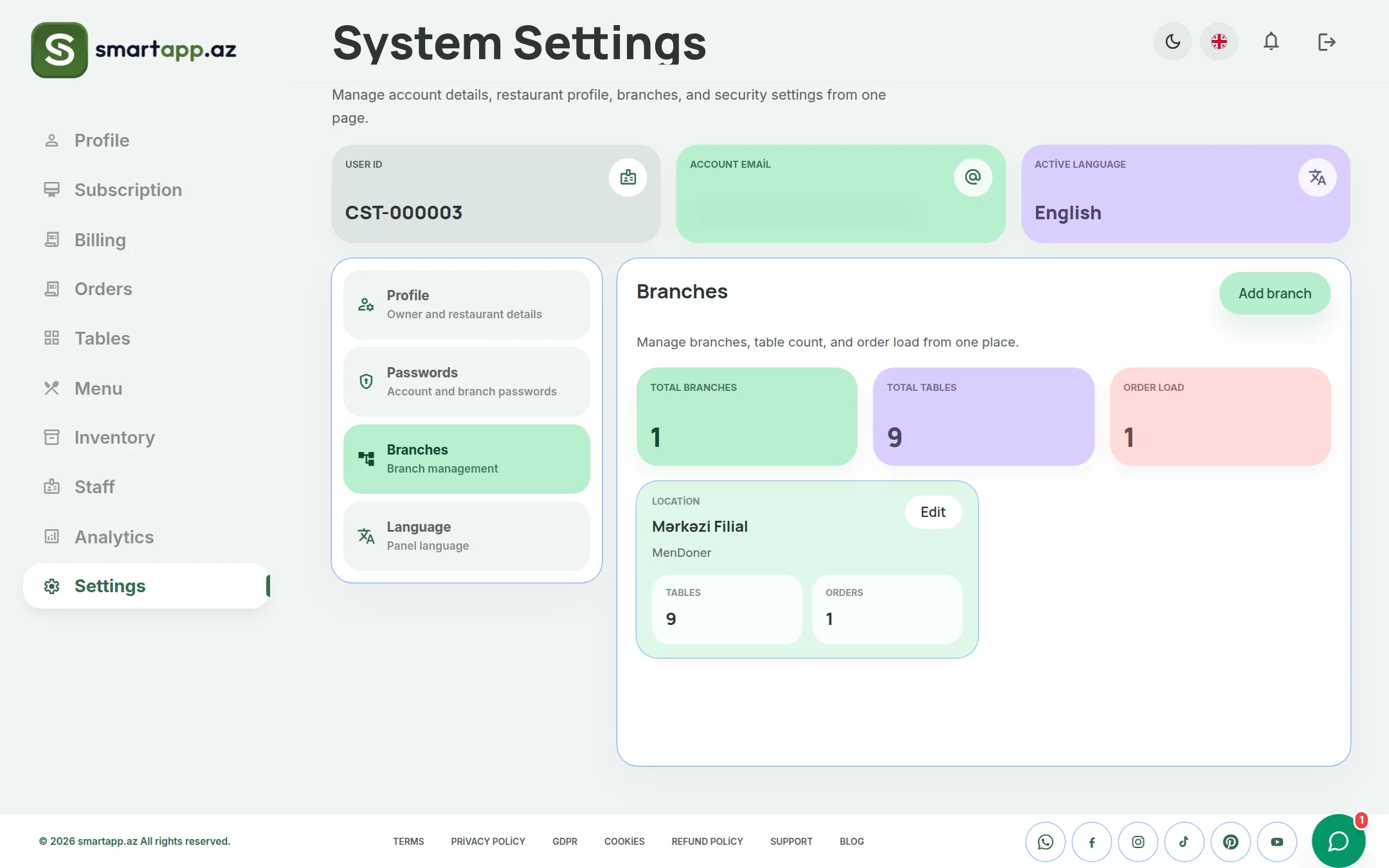
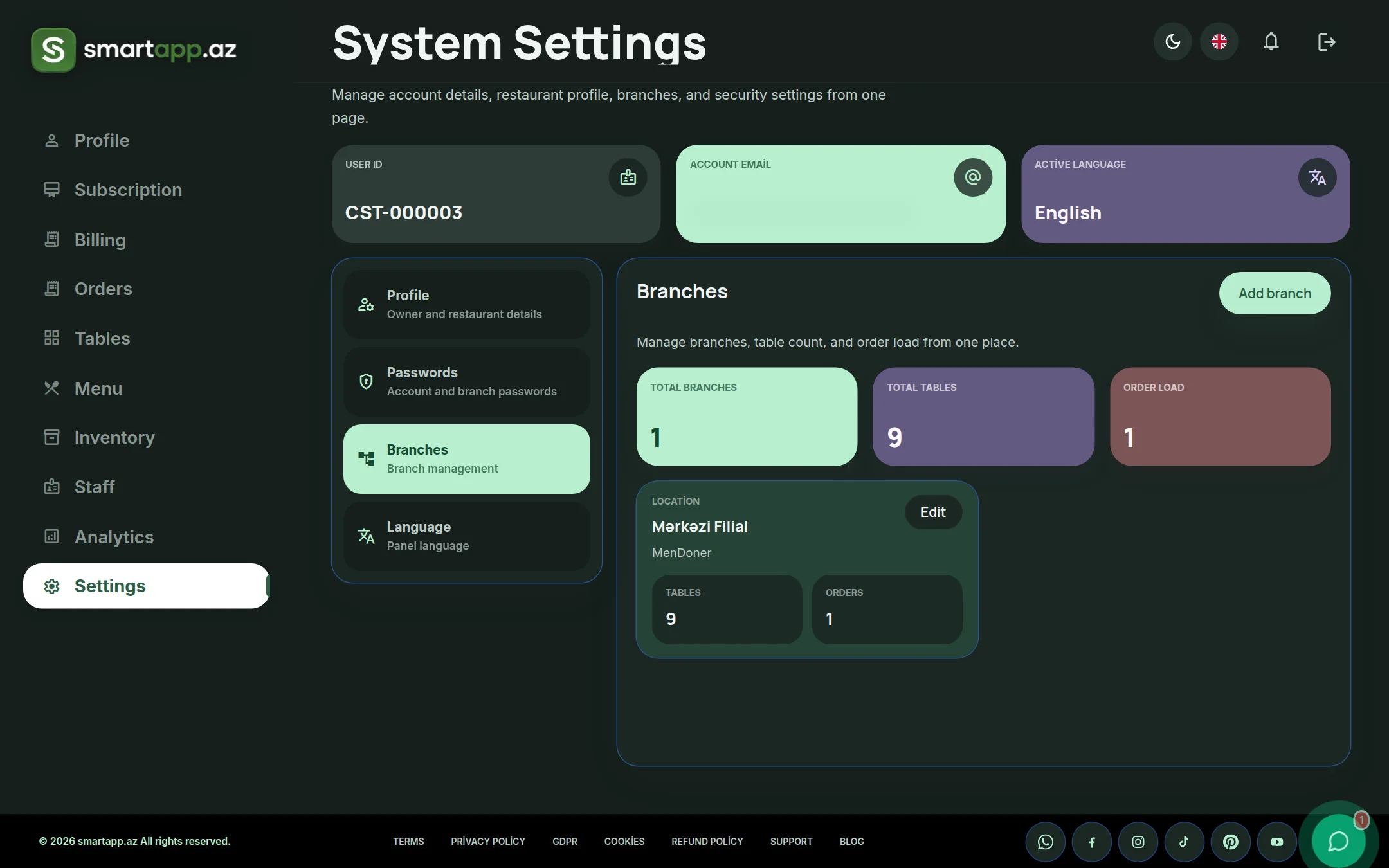
B. Multi-Branch Network Management (Key Feature)
For multi-unit restaurant chains, the Branches tab provides centralized oversight:
Branch Roster & Status: Unified table listing all branch locations, addresses, and subscription renewal deadlines.
Adding New Branches: Expand your chain seamlessly by linking new branches under the master holding account.
Branch Passwords & Credentials: Generate and reset individual manager logins and passwords for specific branch POS terminals.
Localized POS & Pricing: Configure unique menu prices and table counts tailored to individual branch locations.
C. Passwords & Security
Manage administrative password updates and access governance.
D. Language & Regional Preferences
Switch panel interface language between English, Azerbaijani, and Russian with a single click.
Conclusion
Centralize your subscriptions, legal billing, and multi-branch network via the SmartApp.az User Panel, while executing rapid daily orders and kitchen operations through the app.smartapp.az Business Panel!
Share
Reviews
No approved reviews yet.
Related articles
 starFeaturedHow to Use
SmartApp Business Panel: A-to-Z Registration and Full Management Guide
Step-by-step illustrated guide covering everything from registering on the SmartApp.az system to managing tables, menus, QR orders, cash register, and staff.
 How to Use
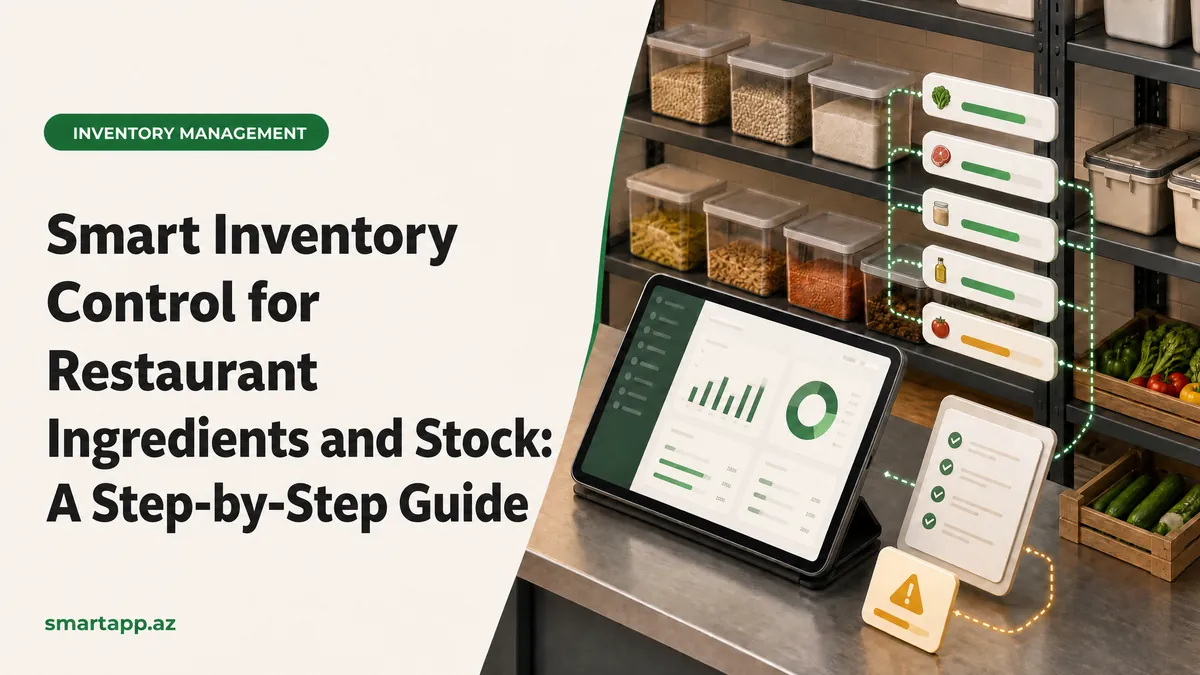
Smart Control of Restaurant Inventory & Raw Material Stock: A Step-by-Step Guide
A complete guide to registering raw materials, assigning ingredients to dishes, and managing automatic depletion using the SmartApp.az inventory module.
 How to Use
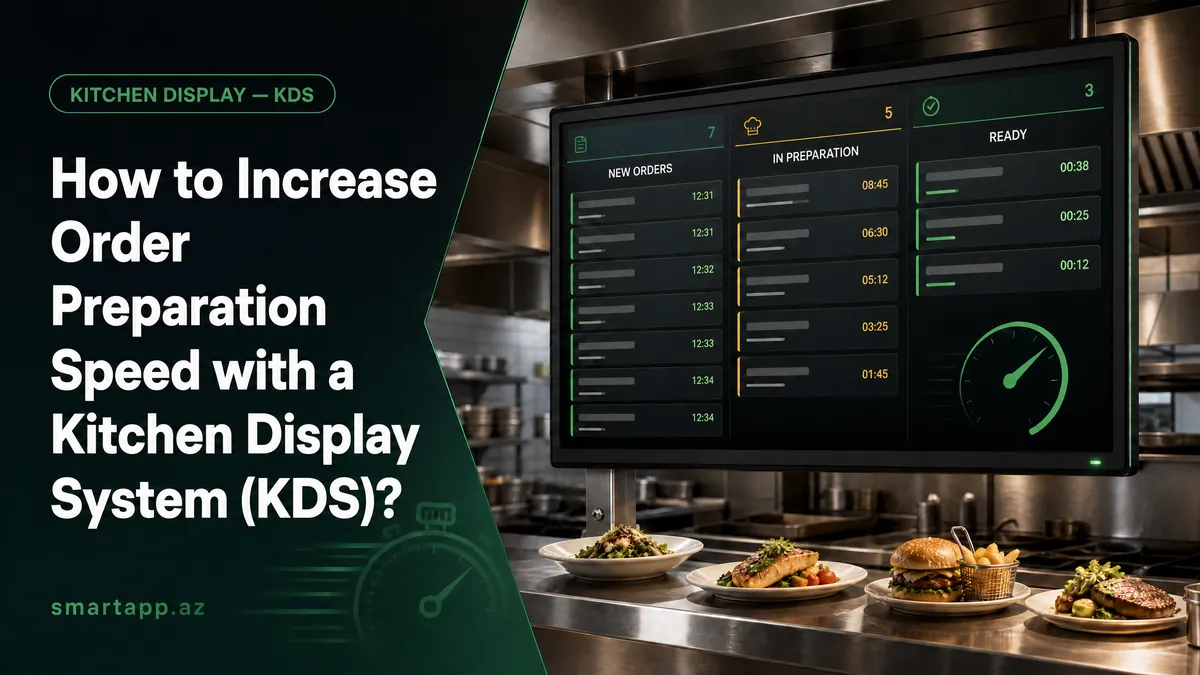
How to Increase Order Preparation Speed with a Kitchen Display System (KDS)
Discover how SmartApp.az’s Kitchen Display System (KDS) digitizes order flow, cuts preparation time by up to 40%, and keeps waitstaff instantly notified.